


ByteDance Seed launched Seedance 2.5 on 31 July 2026. It makes clips of up to 30 seconds in a single pass, up from 15 seconds in Seedance 2.0. This guide covers Seedance 2.0.
Seedance 2.0 high bitrate on Runway is an output-compression choice, not a different video model. Runway says High retains more detail with fewer compression artifacts and produces larger files, while Standard and High use the same generation billing rates. However, the default depends on the route: the API defaults to Standard, while Runway’s app guide lists High. See the October 27 Runway Dev changelog and the Seedance 2.0 app guide.
The practical question is whether that larger source file helps your actual edit or delivery. A cleaner local clip can be useful, but a social platform may encode it again. Likewise, extra data cannot repair a product that changes shape halfway through the shot.
Seedance is ByteDance Seed’s video-generation model. For the maker’s own overview, see Seedance on ByteDance Seed.
Evidence basis: Official documentation checked October 28, 2026. The scene, prompts, comparison method, and acceptance rules below are proposed working materials. Tech4GenZ has not generated or measured comparison clips for this article.
In this article
- Key takeaways
- What changed for Seedance 2.0 high bitrate on Runway?
- Seedance high-bitrate output is not higher resolution
- Design a fair Seedance 2.0 high bitrate comparison
- Measure Seedance video file size before judging detail
- Check Seedance 2.0 high bitrate after editing and upload</li
- When should you choose Seedance 2.0 high bitrate?
- Tech4GenZ Verdict: keep the detail you can actually use
>
Key takeaways
- Check the route before trusting a default. Runway Dev’s API and the consumer app document different starting settings.
- Separate compression from generation quality. Higher bitrate is not a new model, higher resolution, or a fix for incorrect motion.
- Compare equivalent conditions. Keep the model, references, duration, resolution, framing, and audio choices fixed where supported.
- Inspect three stages. Review the untouched source, editor export, and processed upload separately.
- Choose for the job. Keep the larger file when it provides a useful advantage; choose the smaller delivery when it meets the brief.
What changed for Seedance 2.0 high bitrate on Runway?
Runway’s October 27, 2026 API update adds a bitrate parameter to three model identifiers:
seedance2seedance2_fastseedance2_mini
The changelog covers text-to-video, image-to-video, and video-to-video requests. It says standard is the previous API output and the default; selecting high preserves more detail with fewer compression artifacts, at a larger file size. Both settings are billed at the same rates. Those are Runway’s documented claims, not measured improvement percentages from this article.
Importantly, this update is not the original launch date of Seedance 2.0. Nor should you transfer settings from another model simply because it also appears inside Runway.
Seedance Standard vs. High bitrate: API and app defaults
The Runway app support guide lists High as the default and describes Standard as a smaller-file option for drafts or limited storage. It also says bitrate does not change the credits spent on a generation.
| Route | Documented default | What to check before generating |
|---|---|---|
| Runway Dev API | Standard | Exact model identifier and explicit bitrate value |
| Runway app, Seedance 2.0 guide | High | Visible selection in your account and the displayed generation charge |
Therefore, record the actual setting instead of writing “I left it at default.” A teammate working through a different route could otherwise produce a different output configuration without changing the creative brief.
Also, equal generation billing does not mean identical total workflow expense. Larger files still require storage and transfer capacity. However, no file-size multiplier or download-time claim is established here.
If you are budgeting rejected attempts, our Higgsfield video credits guide addresses that separate problem. Its platform-specific credit rules do not apply to Runway.
Seedance high-bitrate output is not higher resolution
Bitrate describes how much encoded data a video uses per second. Resolution describes the frame’s pixel dimensions. Meanwhile, the codec is the system used to compress and decode the video.
These properties interact, but they are not interchangeable:
| Property | Question it answers | What it does not establish |
|---|---|---|
| Bitrate | How much encoded data is used over time? | Whether the generated object is correct |
| Resolution | How many pixels are in each frame? | Whether those pixels retain clean detail |
| Frame rate | How many frames play per second? | Whether motion is believable |
| Model identity | Which generator produced the scene? | Whether the output encoding suits delivery |
For example, compression can make fine fabric look smeared or introduce visible blocks around moving detail. By contrast, a notebook acquiring an extra spine is a content-generation error. Increasing output bitrate is not a reliable repair for that error.
If the product itself changes, use the separate Kling product-consistency workflow to think about references and continuity. That guide concerns a different model and task, not proof of Seedance’s behavior.
Similarly, a higher number in file metadata is not a quality score. Compare clips under equivalent viewing conditions, and avoid judging unrelated codecs or different scenes by bitrate alone.
Design a fair Seedance 2.0 high bitrate comparison
First, define a small scene with detail you can inspect. Use an original photograph or authorized reference of an unbranded notebook on woven fabric, with a metal paper clip and a softly lit gray background. The fabric provides texture; the paper clip provides a narrow edge; the background gives you a smooth tone to inspect.
Keep readable labels out of the generated scene. Add any necessary text later as an editable overlay, so lettering errors do not obscure the compression question.
Freeze the Seedance bitrate test conditions
Before spending credits, record:
- Test date, account route, and exact model label or identifier.
- Prompt text and reference filenames, including versions.
- Requested duration, aspect ratio, resolution, and audio settings where supported.
- Explicit Standard or High selection.
- Any exposed seed or reproducibility control, plus what its documentation actually promises.
- Current charge, spending ceiling, job identifier, and untouched output filename.
For this proposed trial, aim for a five-second 16:9 shot at one supported resolution. Choose that resolution before the first request, then keep it unchanged. Also, use one model variant throughout; Standard bitrate on Mini versus High bitrate on another variant would mix two decisions.
Allow up to three requests per setting, including failures, subject to an approved spending cap. Keep every returned output rather than quietly choosing only the most flattering pair. This is an editorial sampling plan, not a statistically representative benchmark.
Copyable prompt for the detail-retention check
Create one continuous five-second product-detail shot using the supplied reference. Show the same unbranded closed notebook, woven fabric, and metal paper clip. Preserve their visible construction and arrangement. Use soft side lighting, a smooth gray background, and a very slow lateral camera move. Keep the notebook fully in frame. Maintain a single scene without cuts. Do not add people, lettering, logos, extra objects, or decorative effects.
This prompt is a proposed test input, not a guarantee of stable texture or geometry. Moreover, if a requested control is unavailable, document the replacement before running the comparison.
Same prompt does not guarantee matched frames
Two independent generations may differ in lighting, motion, fabric pattern, or object shape. Therefore, using the same prompt and reference does not isolate bitrate by itself.
If the route supports documented deterministic matching, preserve and report those controls. Even then, inspect whether the returned content actually matches. Otherwise, label the clips separate generations with matched requested settings.
For unmatched generations, describe visible observations cautiously. “The High sample shows cleaner fabric here” is not equivalent to “High bitrate caused this improvement.” Do not calculate pixel-level similarity between different scenes and present it as a compression score.
Measure Seedance video file size before judging detail
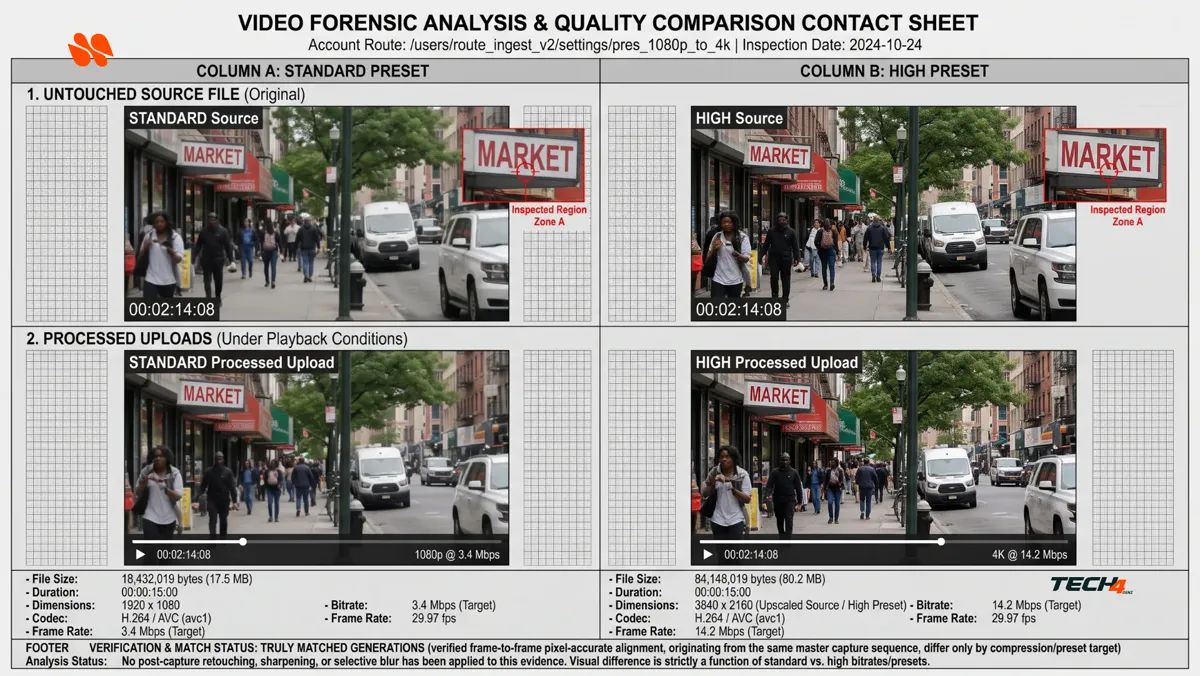
Next, save both untouched files before opening them in an editor. A re-export creates another processing stage, which can confuse the comparison.
Record actual bytes, duration, dimensions, codec, frame rate, and any reported video-stream bitrate. For editors comfortable with a terminal, FFmpeg’s ffprobe documentation explains how to inspect media streams and container information.
Run this locally for each real output, replacing the filename:
ffprobe -v error \
-show_entries format=filename,size,duration,bit_rate:stream=index,codec_type,codec_name,width,height,avg_frame_rate,bit_rate \
-of json "your-actual-output.mp4"
Some fields may be absent. In particular, container-level bitrate includes more than the video stream, so do not relabel it “video bitrate.” Keep audio settings comparable and report unknown fields as unavailable.
For a useful cross-check:
Average whole-file Mbps = file size in bytes × 8 ÷ duration in seconds ÷ 1,000,000.
This includes audio and container overhead. It is a measurement aid, not a visual-quality score or Runway’s promised encoding target.
Then inspect the clips at normal playback and at the same display scale. Look for texture smearing, blocks around moving edges, halos, or unstable gradients. Also, distinguish those observations from flicker or geometry changes that might originate in generation rather than compression.
Check Seedance 2.0 high bitrate after editing and upload
A source-file improvement only answers the first part of the production question. Next, put each candidate through the same realistic delivery path.
Inspect the source, export, and platform playback separately
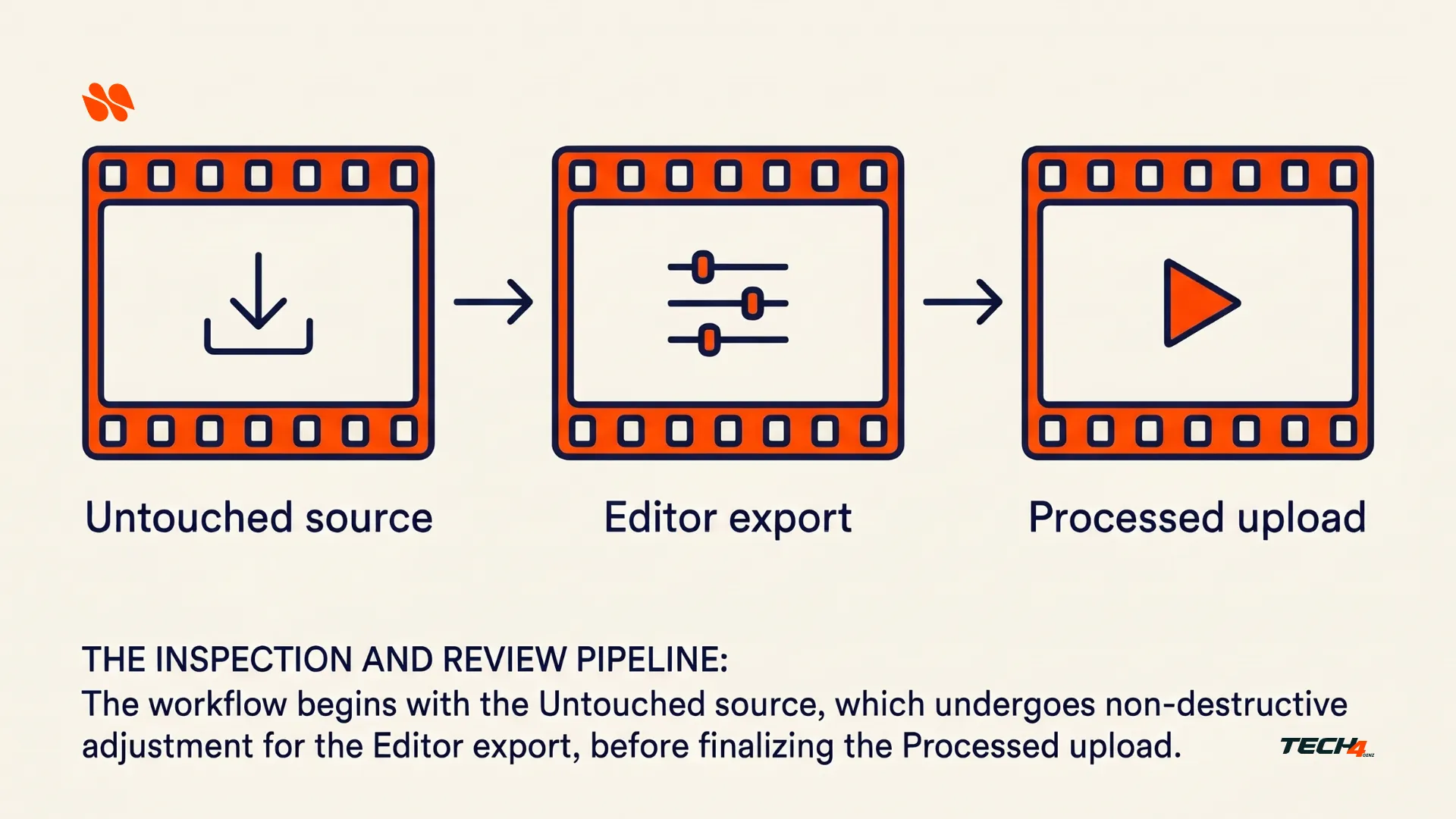
- Source: Review the untouched downloaded clip and retain its metadata.
- Editor export: Apply the same crop, duration, overlays, and export preset to both candidates. Verify the actual export settings, not just the preset name.
- Processed upload: Use the same destination and intended playback quality. Wait for the relevant processing to finish, and record the device, player quality, and inspection time.
For example, YouTube says it re-encodes uploaded videos to optimize playback. That explains why a downloaded source and platform playback are not the same evidence. It does not prove that High and Standard will look identical after upload.
If both delivery versions show the same problem despite different-looking sources, investigate the export and playback stages. Conversely, if the source already lacks the required detail, do not expect an upload preset to reconstruct it.
Keep graphic overlays separate from the compression check
For a scene that also carries sound, see HeyGen Video: 5 Checks Before You Publish a Scene With Sound, which reviews picture and sound together before delivery.
If the video needs a branded opener or section icons, the Recraft Styles Vector six-icon workflow can help you prepare a coherent graphic family. Keep those approved assets identical in both edits, then inspect how their edges survive the final export. Recraft is a companion design workflow, not a Seedance bitrate control.
Likewise, use the Canva Craft client-delivery checks for accompanying campaign graphics. A crisp clip cannot compensate for an uneditable price or a wrong date on its title card.
When should you choose Seedance 2.0 high bitrate?
Use the output that meets the actual job, not whichever filename sounds more professional.
| Delivery situation | Sensible starting choice | What must still be checked |
|---|---|---|
| A draft for composition feedback | Standard | The reviewer can judge the intended content |
| A selected shot for further editing | High | Useful detail survives the planned crop and export |
| A storage- or bandwidth-limited handoff | Standard candidate | The smaller version still meets the brief |
| An archive of an accepted detailed shot | High candidate | File size, rights, retention, and actual source quality |
| A clip with wrong geometry or motion | Neither as a repair strategy | Revise or replace the shot |
These are editorial starting points, not measured winners. For remote US or UK client work, agree on the deliverable format, upload destination, and transfer constraints first. Then report the actual file sizes rather than inventing a download-time saving from the client’s location.
Does high bitrate cost more in Runway’s Seedance 2.0 API?
According to Runway’s October 27, 2026 changelog, Standard and High are billed at the same generation rates for the supported Seedance 2.0 API variants. However, that does not make either generation free, nor does it make storage, transfer, or review effort identical.
Can you turn an existing Standard output into High?
The verified announcement describes a setting accepted on generation requests. It does not establish a lossless upgrade path for an existing Standard file. Re-encoding a compressed clip into a larger file does not by itself restore discarded detail; check separately for any documented regeneration or enhancement workflow.
Frequently Asked Questions
What is Seedance 2.0 high bitrate on Runway? An output-compression choice, not a different video model. Selecting High preserves more detail with fewer compression artifacts, at a larger file size.
What are the Standard and High defaults? The Runway Dev API defaults to Standard, while the Runway app guide lists High as the default. Record the actual setting instead of writing “I left it at default.”
Does high bitrate mean higher resolution? No. Bitrate describes how much encoded data a video uses per second, and resolution describes how many pixels are in each frame. They interact, but they are not interchangeable. Higher bitrate is not a new model, higher resolution, or a fix for incorrect motion.
Does high bitrate cost more in Runway’s Seedance 2.0 API? Standard and High are billed at the same generation rates for the supported Seedance 2.0 API variants. Bitrate does not change the credits spent on a generation. However, that does not make either generation free, nor does it make storage, transfer, or review effort identical.
When should you choose Seedance 2.0 high bitrate? Use High for a selected shot for further editing, when useful detail survives the planned crop and export. Use Standard for a draft for composition feedback. For a clip with wrong geometry or motion, choose neither as a repair strategy, and revise or replace the shot.
Tech4GenZ Verdict: keep the detail you can actually use
Seedance 2.0 high bitrate is worth evaluating for selected shots that will be edited, cropped, or retained as sources. Standard remains a sensible candidate for drafts and constrained delivery. This recommendation rests on Runway’s documentation and the production tradeoff, not a completed Tech4GenZ benchmark.
Start with one rights-cleared scene, explicit settings, and a fixed spending cap. Then inspect the source, export, and upload at the intended viewing size. Keep the larger file when its advantage survives the work you actually do, and keep uncertainty visible when generation differences prevent a fair causal comparison.
See also: Kling Product Consistency: 5 Checks for Kling 4.0 on Runway. Use its reference and continuity checks when the product itself, rather than the compression, is what changes between shots.




[…] you bring in an optional generated clip from Runway instead, our Seedance 2.0 High Bitrate on Runway guide explains the separate source-detail versus file-size decision. Do not confuse Seedance’s […]
[…] the quality side of that choice, see Seedance 2.0 High Bitrate on Runway: Detail vs. File Size, which weighs detail against file size on […]
[…] the file-size side of that export check, see Seedance 2.0 High Bitrate on Runway: Detail vs. File Size, which weighs detail against file size on […]
[…] See also: Seedance 2.0 High Bitrate on Runway: Detail vs. File Size […]