

A Recraft Styles Vector icon set needs more than six attractive drawings. First, give the model a reference pack that agrees with itself. Then generate each subject against the same brief, inspect all six together, and check the actual SVG files before delivery.
This guide uses Artlist’s documented Recraft V4 Styles Vector route. The six-icon newsletter brief, prompts, acceptance rules, and correction log are original working materials, not completed model tests. Product documentation was checked on October 28, 2026; no generated output or performance result is claimed here.
In this article
- Key takeaways
- What is Recraft V4 Styles Vector?
- Build original references for your Recraft Styles Vector icon set
- Define a six-icon brief with real editorial jobs
- Generate the Recraft Styles Vector icon set one subject at a time
- Inspect the Recraft Styles Vector icon set as a family
- Correct spacing, canvas dimensions, and delivery files
- What if the references are SVG files?
- Your next step: approve a system before approving six files
Key takeaways
- Use compatible original references. Artlist documents one to ten raster references, with three to five mutually consistent examples suggested for prompting.
- Keep the experiment controlled. Reuse the approved pack and settings while changing the subject, not the entire visual direction.
- Judge the family, not the favorite. Compare palette, line weight, padding, silhouette, and SVG editability across every icon.
- Check the returned canvas. Artlist warns that a 16:9 request can return a 2:1 canvas.
- Keep labels separate. Editable SVG artwork is not a reason to generate application dates, sales figures, or interface text inside the icon.
What is Recraft V4 Styles Vector?
Recraft V4 Styles Vector is a reference-conditioned image model that Artlist documents as producing one editable SVG per generation. It accepts a prompt plus one to ten required reference images in JPG, PNG, or WEBP format. SVG references are not supported on this route; a previous vector result must first be exported to a supported raster format.
According to Artlist’s Recraft V4 Styles Vector documentation, Precise follows the references closely, while Flexible retains their general look. Precise is the documented default. The page also distinguishes standard 1K and Pro 2K quality tiers.
However, those are documented capabilities, not proof that a particular six-icon family will pass your design review. Also, the support page’s October 26 publication date is not evidence of a worldwide launch on that date.
Precise or Flexible for a matched vector set?
Start with Precise when your immediate task is to match an approved visual system. By contrast, Flexible is worth exploring when you deliberately want looser interpretation. If you compare them, change only that setting and retain both sets of outputs.
Artlist suggests iterating with Precise on Styles Vector before trying the final prompt on Styles Pro. Nevertheless, a tier change still needs inspection. Do not assume that a more detailed result will automatically belong beside the earlier icons.
Before starting, confirm the exact model label, reference controls, available quality, current charge, and terms in your own Artlist account. This is a documentation-based production plan, not a verified tour of every account’s interface.
Build original references for your Recraft Styles Vector icon set
First, draw three simple reference images yourself or have an authorized designer create them: an envelope, a bookmark, and a folder. These are style examples, not the six requested output subjects. Consequently, the exercise asks the model to transfer a visual language rather than merely reproduce the requested objects.
For this fictional project, use a provisional system:
- A square 128 × 128 design canvas.
- Dark ink
#17324D, one teal accent#178A87, and no gradients. - Rounded ends and joins, with a target visual weight equivalent to a 4-unit stroke on the design canvas.
- Artwork initially kept inside a centered 96 × 96 live area.
- White reference backgrounds, simple shapes, and no shadows, lettering, or logos.
These are editorial design targets, not Recraft settings or universal icon standards. In addition, the palette is proposed for this example, not presented as Tech4GenZ’s brand guide.
Export the three approved drawings as 1024 × 1024 PNG files. Then place them side by side and check that their stroke treatment, corner softness, color roles, and detail level agree. If one reference looks like a different collection, correct it before generation.
A full reference allowance is not a requirement to fill every slot. Artlist’s Recraft V4 Styles Vector help article recommends three to five that clearly share a style. Therefore, begin with the three approved originals rather than adding attractive but contradictory examples.
Finally, freeze this pack as version 1. Keep its filenames, source drawings, approval note, and rights record together. Do not quietly replace one image halfway through the batch.



Define a six-icon brief with real editorial jobs
Imagine Fieldnote Bulletin, a fictional newsletter that groups practical AI reading into six sections. Each icon needs a distinct meaning, while the whole family needs the same visual rhythm.
The linked Tech4GenZ articles below are reading destinations for the example, not claims that these products integrate with Recraft.
| Icon subject | Editorial job | Example reading destination |
|---|---|---|
| A single product box | Reference-led product work | Kling Product Consistency: 5 Checks for Kling 4.0 on Runway |
| A calendar with one check | Planning and deadlines | ChatGPT College Planner: Verify Your Application Timeline |
| Three bars inside a small frame | Checking a sales update | Gemini in Sheets on iPhone: Check a Weekly Sales Update |
| Two distinct speech bubbles | Multilingual collaboration | 5 Google Meet Translation Checks Before Your Next Client Call |
| A response card beside a separate price tag | Recognizing the boundary between information and promotion | Why a ChatGPT Ad Is Not the Same as an AI Answer |
| A branching route sign | Finding the correct product experience | Why GPT-6.1 Terra Is Missing From Your ChatGPT Model List |
Importantly, the artwork must not carry the information those articles ask readers to verify. Keep application deadlines, sales values, language names, sponsorship labels, and model names in editable page text beside it. A symbol can identify a section; it cannot validate its contents.
Copyable Recraft Styles Vector icon set brief
Project: Fieldnote Bulletin, a fictional practical-AI newsletter.
Deliver six individual SVG icons: product box, checked calendar, three-bar chart, paired speech bubbles, response card beside a separate price tag, and branching route sign.
Use the same approved three-image reference pack for every request. Preserve its visual language, color roles, rounded construction, restrained detail, and generous surrounding space.
Each file must contain one complete icon composition on a square canvas. The card-and-tag icon is one composition containing two deliberately separate elements. Do not add text, numerals, logos, decorative scenes, or extra icons.
Review the full family together. Acceptance depends on palette, line weight, optical spacing, recognizable silhouette, and a successful SVG editing and reopen check.
Generate the Recraft Styles Vector icon set one subject at a time
First, select the documented Styles Vector route and attach the approved raster references. Choose 1:1 and Precise for this proposed trial, then keep those choices stable across the six subjects. If the interface exposes additional settings, record them instead of assuming an invisible default.
Next, use a short subject request. Since the references carry the style, avoid a string of competing aesthetics such as watercolor, chrome, vintage engraving, and flat outline in the same prompt.
Use one shared prompt with six subject lines
Shared prompt block:
Create one centered icon of the subject below. Follow the approved reference images for visual treatment. Show the entire composition with generous clear space. Use simple, recognizable geometry. No lettering, numerals, logos, shadows, decorative background, or extra symbols.
Append exactly one subject line per request:
- Product: “Subject: one closed parcel box, shown in a simple three-quarter view, with one visible lid seam.”
- Planning: “Subject: one calendar page with two binding tabs and a single large check mark.”
- Sales: “Subject: three vertical bars of different heights inside one simple chart frame, without axis labels.”
- Conversation: “Subject: two overlapping speech bubbles with clearly distinct tails, without letters or flags.”
- Disclosure: “Subject: one blank response card and one detached price tag beside it, with a visible gap between them.”
- Access: “Subject: one route-sign post with two simple directional arms, without lettering.”
Set an attempt limit and preserve your records
For this small trial, allow up to two submitted requests per subject, including failures. As a result, the initial batch has a ceiling of 12 submitted requests, not a promise of 12 billable successes or a known cost. Check charges before beginning, and stop early when a subject passes.
Keep every untouched SVG, including rejected attempts. Also, record the date, route, visible model label, quality, aspect ratio, style mode, prompt, reference filenames, and attempt number. Record a seed only if the route exposes one.
If a subject still fails at the agreed limit, mark it unresolved. Instead of extending the budget invisibly, simplify the subject or draw that icon manually within the same system.
Inspect the Recraft Styles Vector icon set as a family
First, assemble a contact sheet with the three references in a clearly labeled top row and all six chosen outputs below. Include any unresolved slot rather than hiding it. Then compare the icons at their intended display size and at a larger editing size.
Figma’s account of developing icons within a shared design system emphasizes explicit construction guidelines and review against the broader family. However, its particular stroke sizes are not rules for this project. The transferable lesson is to agree on a standard before selecting favorites.
Use five consistency checks for the vector icon family
| Check | Accept when | Correct or reject when |
|---|---|---|
| Palette | Approved color roles stay consistent across the family | An icon introduces an unapproved color, gradient, or unexpected fill |
| Line weight | Contours feel equally heavy at the intended display size | One icon looks bold, hairline, or structurally different |
| Padding | Symbols feel centered and have comparable breathing room | A wide icon nearly touches an edge while another looks miniature |
| Silhouette | Each section remains recognizable without its text label | Extra detail hides the subject or two icons become hard to distinguish |
| SVG editability | The required component can be selected, changed, saved, and reopened | Essential artwork is flattened, broken, or impractical to revise |
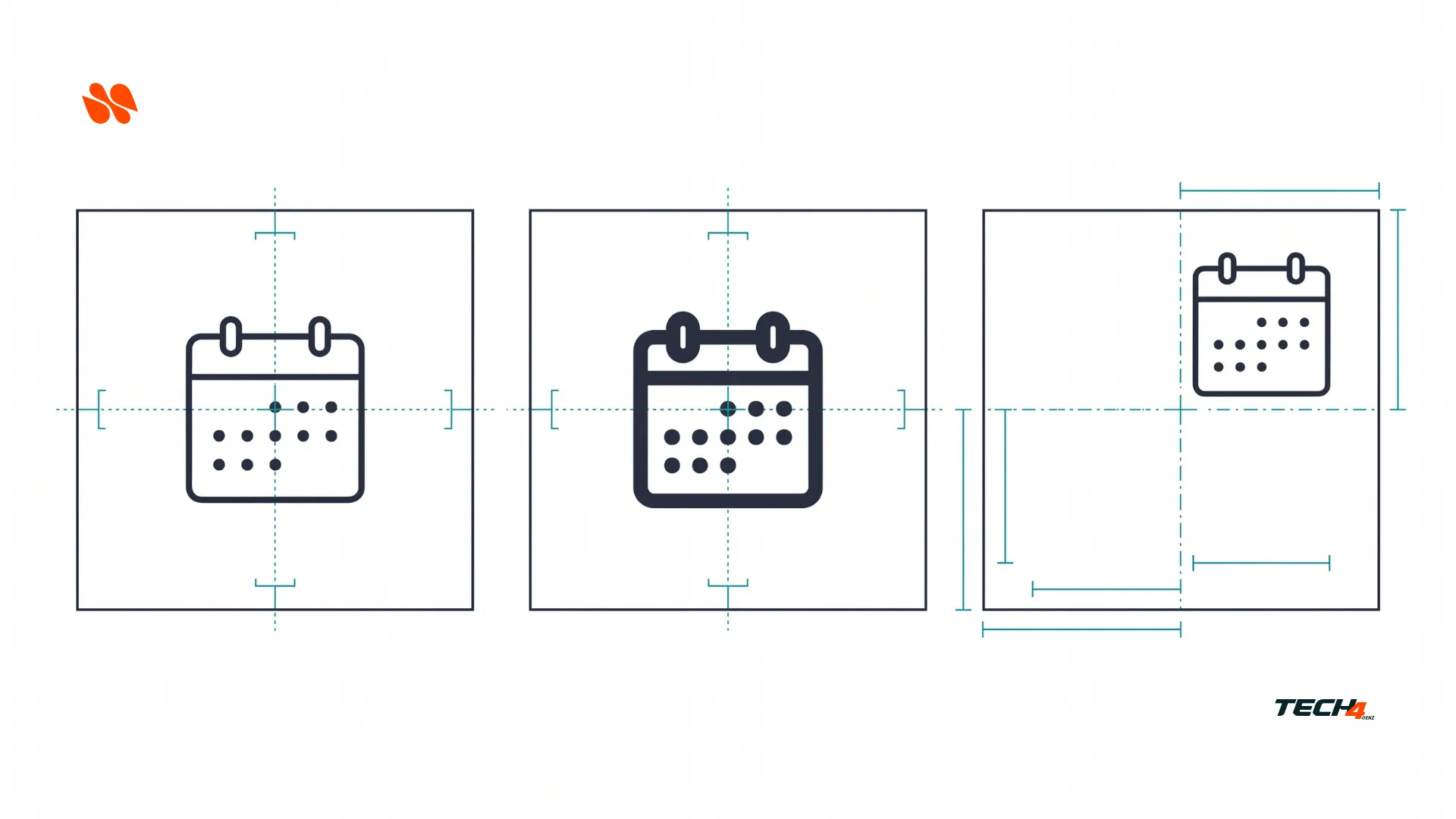
The 96 × 96 live area is a starting guide, not permission to distort every subject into the same box. For example, a narrow signpost may need optical adjustment beside a broad parcel. Therefore, compare apparent size and visual center as well as numerical bounds.
Next, inspect the smallest intended use. If the newsletter uses 24-pixel icons, review them at 24 pixels instead of approving everything from a large preview. If the card-and-tag concept becomes ambiguous, simplify it or use a larger placement with a visible label.
Do not average away a serious failure. A beautiful palette does not compensate for an unreadable subject or an unusable source file.
Check SVG structure, not just the extension
SVG means Scalable Vector Graphics, but an SVG document can still contain raster image content. MDN’s SVG image-element reference explains that the image element can display raster files. Consequently, the .svg extension alone does not prove that every visible component is editable vector geometry.
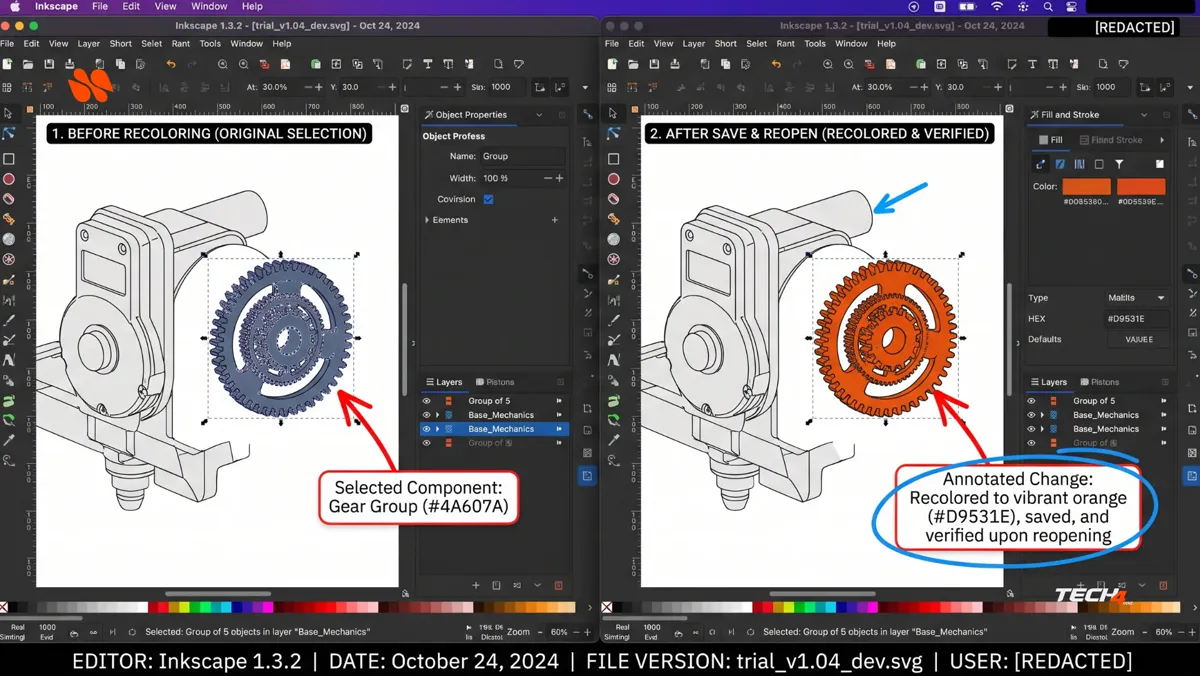
Open a working copy in your intended vector editor. Then select one meaningful component, recolor it, move it slightly, undo the move, save, and reopen the file. Check that the revision survives and the rest of the drawing stays intact.
Also, inspect the source or object panel when the visible artwork behaves like one image. An image element is a reason to investigate, not an automatic failure in every SVG workflow. For this all-vector delivery brief, however, a raster-only main icon does not meet the requirement.
Keep captions and navigation labels as native page text. If a future job includes lettering, the separate Ideogram Vector guide to editable artwork versus editable lettering explains why shape editing and retyping words are different requirements. That is an SVG workflow distinction, not evidence about a Recraft output tested here.
Correct spacing, canvas dimensions, and delivery files
Artlist documents several aspect ratios, but it also warns that a 16:9 request can return on a 2:1 canvas. Therefore, inspect returned dimensions rather than trusting the selection label. For individual icons, the square trial avoids relying on a wide layout; you should still verify each file.
In SVG, the viewBox defines the position and dimensions of the internal coordinate rectangle, as MDN’s viewBox reference explains. When normalizing files, resize or transform the artwork deliberately. Merely replacing a viewBox value can change the visible crop or scale without fixing the icon.
Normalize the SVG artwork without distortion
Next, align the accepted set in a common square coordinate system. Preserve proportions, check rounded ends and joins where relevant, and watch for clipping after any stroke or bounding-box change. If outlines are expanded into shapes, judge their visual weight rather than searching for a stroke setting that may no longer exist.
Use a correction record that separates generation quality from later cleanup:
| File or attempt | Observation | Decision | Correction and retest |
|---|---|---|---|
Hypothetical calendar-a01.svg |
Check mark appears heavier than the reference | Repair candidate | Normalize its visual weight; inspect again at 24 pixels |
Hypothetical conversation-a01.svg |
Two bubble tails merge at the target size | Replace candidate | Simplify the subject and retry within the remaining allowance |
| Your next actual output | Record what you can observe | Keep, repair, replace, or unresolved | Record the real action and outcome |
These example entries illustrate the log; they are not reported Recraft results.
Package the approved icon set for delivery
Finally, retain untouched originals, edited SVG masters, transparent PNG fallbacks where needed, the contact sheet, the reference pack, and the completed log. Use a documented filename scheme such as fieldnote-calendar-v01.svg, and test the delivery files in their actual destination. For website use, follow your site’s approved SVG sanitization workflow or use reviewed raster exports rather than enabling unrestricted SVG uploads.
If the icons will sit inside a promotional graphic, the Canva Craft editing checks before client delivery cover the separate layout handoff. A coherent icon family does not prove that the finished poster’s text and exports are correct.
What if the references are SVG files?
Export them to JPG, PNG, or WEBP before using this Artlist route. However, retain the original vectors as your editable masters. A raster reference is the supported conditioning input; it does not change the documented SVG output format.
Frequently Asked Questions
What is Recraft V4 Styles Vector? It is a reference-conditioned image model that Artlist documents as producing one editable SVG per generation. It accepts a prompt plus one to ten required reference images in JPG, PNG, or WEBP format. SVG references are not supported on this route, so a previous vector result must first be exported to a supported raster format.
How many raster references does Artlist document? One to ten raster references. A full reference allowance is not a requirement to fill every slot.
How many requests should you allow per subject? Up to two submitted requests per subject, including failures.
How should you judge the icon set? Judge the family, not the favorite. Compare palette, line weight, padding, silhouette, and SVG editability across every icon. If the newsletter uses 24-pixel icons, review them at 24 pixels.
What should you do if the references are SVG files? Export them to JPG, PNG, or WEBP before using this Artlist route. However, retain the original vectors as your editable masters.
Your next step: approve a system before approving six files
Build your first Recraft Styles Vector icon set around three compatible original references and six clearly defined subjects. Then review the complete contact sheet, make one real edit to each SVG, and keep the correction history beside the final files.
If one icon still does not fit, simplify or replace it. The useful deliverable is a coherent, inspectable family, not six isolated images that happen to share a prompt.
See also: Firefly Screen Recording Tutorial: 5 Steps With Clear AI Labels for using these icons in a recorded tutorial with clear AI labels.

[…] the video needs a branded opener or section icons, the Recraft Styles Vector six-icon workflow can help you prepare a coherent graphic family. Keep those approved assets identical in both edits, […]
[…] also: Recraft Styles Vector Icon Set: A Six-Icon Workflow and Ideogram Vector: Editable Artwork vs. Editable Lettering for editable vector artwork for an […]
[…] also: Recraft Styles Vector Icon Set: A Six-Icon Workflow for a controlled six-icon vector set, and Firefly Screen Recording Tutorial: 5 Steps With Clear AI […]
[…] also: Recraft Styles Vector Icon Set: A Six-Icon Workflow for editable vector […]
[…] See also: Recraft Styles Vector Icon Set: A Six-Icon Workflow […]