

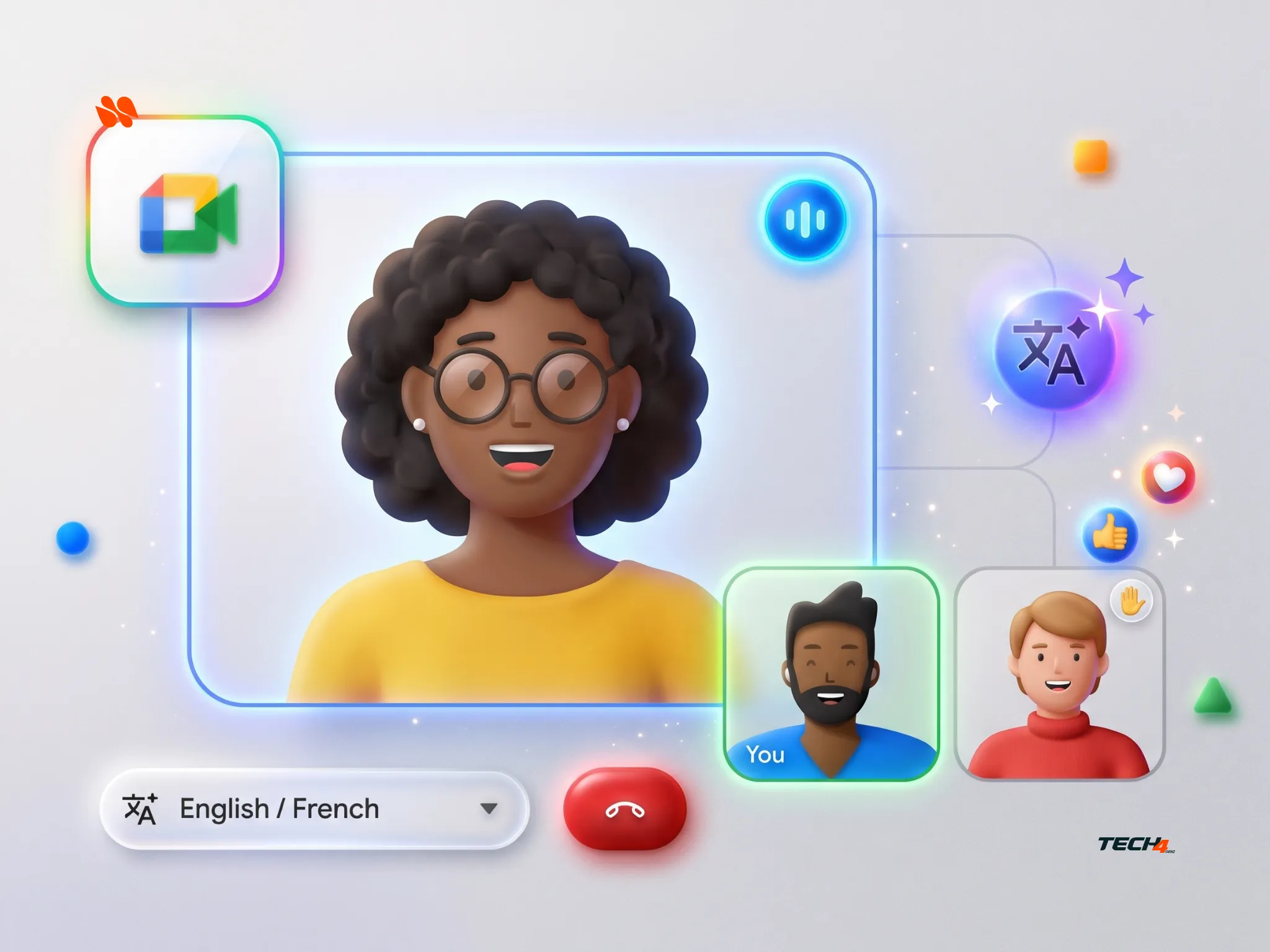
How to Use Google Meet Translation for Multilingual Client Calls
Google Meet translation can make a multilingual client call sound reassuring while leaving one expensive detail unclear: was the price per design, or for the entire project?
Google Meet’s speech translation helps participants follow conversations in different languages. However, the real question is not simply how many languages it supports. Instead, it is whether everyone understands the names, figures, corrections, and commitments discussed during the meeting.
Before relying on it for an important client call, run a low-stakes preflight. First, check account access and configure each listener. Then, rehearse a short script, review meeting limitations, and agree on a written fallback.
This guide explains how to prepare a multilingual Google Meet call and verify the details that matter.
Editorial note: This guide uses Google’s official documentation checked on November 5, 2026. The rehearsal script, glossary, and go/no-go criteria are Tech4GenZ’s proposed workflow—not built-in Google Meet checks or results from a completed product test.
In this article
- How to Use Google Meet Translation for Multilingual Client Calls
- What Is Google Meet Speech Translation?
- 1. Check Google Meet Translation Access Before Inviting the Client
- 2. Configure Each Listener’s Google Meet Speech Translation
- 3. Rehearse Google Meet Translation With Names, Numbers, and Corrections
- 4. Review Google Meet Translation Limits and Unsupported Meetings
- 5. Confirm Action Items and Keep a Written Translation Fallback
- Your Next Step: Test One Changed Commitment
What Is Google Meet Speech Translation?
Google Meet speech translation converts participants’ spoken words into another participant’s preferred listening language during a live meeting. The translated audio is generated in a voice resembling the original speaker’s.
On October 22, 2026, Google expanded speech translation to 63 languages and introduced automatic spoken-language detection. Consequently, participants can translate between supported languages in the same meeting, rather than relying on a single language pair configured for everyone.
Listeners can also enable translation independently. As a result, the feature becomes more flexible for multilingual teams. However, access still depends on the organizer’s eligible plan, administrative settings, rollout status, and meeting conditions. Google’s October update explains the expansion.
Key Takeaways
- Check the meeting organizer’s eligibility. Your own subscription may not be enough for a scheduled meeting.
- Configure participants individually. Listening preferences and permission to translate your own speech are separate controls.
- Test critical details. Include names, amounts, dates, corrections, and instructions that contain words such as “not.”
- Review meeting restrictions. Translation limits, room hardware, recordings, and unsupported meeting types can affect your plan.
- Confirm commitments in writing. Although a translation may sound fluent, it does not prove that everyone understood or accepted the same terms.
1. Check Google Meet Translation Access Before Inviting the Client
First, create a practice meeting using the account that will organize the real call. Then, invite a bilingual colleague who can review the language direction you intend to use.
Whenever possible, rehearse using the same devices, network, and joining method planned for the client meeting. This way, you can identify access problems before the conversation becomes consequential.
Google Meet Speech Translation: Access and Usage Limits
Google’s Help Center and October 2026 update describe the following access requirements. However, availability can change, so check the organizer’s account and the controls visible in the actual meeting. Google Meet Help
| Access check | Documented position |
|---|---|
| Scheduled meeting | The host must have an eligible plan. |
| Direct Google Meet call | At least one participant must have an eligible plan. |
| Eligible plans | Google AI Pro and Ultra; Workspace Business Standard and Plus; Enterprise Standard and Plus; Frontline Plus; AI Pro for Education; AI Expanded Access; and AI Ultra Access. |
| Rapid Release | The October expansion began full rollout on October 22, 2026, with feature visibility expected within 1–3 days. |
| Scheduled Release | The gradual rollout starts November 2, 2026, and can take up to 15 days. |
| Workspace administration | Speech translation is subject to the administrator’s settings and the required Gemini setting. |
| Participant restrictions | Regional availability, participant age, device support, and other meeting conditions can affect access. |
| Supported platforms | The expansion covers web, Android, and iOS. Mobile users may need to update the Meet app. |
Importantly, a rollout schedule is not a guarantee that the feature will appear immediately in every account. Therefore, test access instead of relying solely on the announcement date.
Verify Supported Languages and Administrator Settings
Next, open the actual language selector. Google lists 63 supported languages, including English, Spanish, French, Hindi, Urdu, Arabic, and Bengali.
Nevertheless, the presence of a language in the documentation does not guarantee access in your account or accuracy for your particular subject matter.
If the speech-translation control is missing, ask your Workspace administrator to check the organizer’s edition, release track, and policy.
Google’s administrator instructions describe the Speech Translation setting under Apps, Google Workspace, Google Meet, and Gemini settings.
In addition, do not bypass an organizational restriction to enable the feature.
2. Configure Each Listener’s Google Meet Speech Translation
After confirming access, explain the proposed use of translation to everyone. Also, ask whether participants are comfortable having their speech translated and whether the meeting’s content is suitable for this workflow.
For the desktop interface, Google documents these steps:
- Join the practice meeting.
- Hover over the Captions & translation button at the bottom of the screen.
- Select Translate speech.
- On first use, choose the language you want to hear and select Next.
- If you want your own speech translated for others, select Translate me.
- Ask other participants to configure their listening preferences and translation permissions.
- If useful, enable captions and confirm which language appears.
Google’s Speech Translation Help guide provides the current setup instructions.
Furthermore, the updated feature allows participants to set individual listening preferences. Consequently, do not assume that an older tutorial showing one meeting-wide language pair describes the current interface.
Why Translation Permission Matters
Turning on translation for yourself does not automatically make every participant’s speech available in translated audio.
According to Google, listeners hear translations of participants who have consented to translation. Similarly, other participants need to enable speech translation to hear translated audio.
If a participant does not want their voice translated, respect that choice. Instead, use a different communication method for the relevant part of the meeting.
Google Meet Translated Captions Are a Supplementary Check
When speech translation and captions are enabled together, captions appear in the language of the translated audio. However, Google warns that captions can experience delays and language-identification errors.
Therefore, use captions to follow the conversation and identify wording that needs clarification. Even so, do not treat matching captions and audio as independent proof of accuracy.
Also, give the translation time to finish. Google recommends waiting until the translation symbol above the speaker’s tile disappears before responding.
In practice, short turns and deliberate pauses can make a practice session easier to review.
3. Rehearse Google Meet Translation With Names, Numbers, and Corrections
A language setting is not a quality check. Instead, rehearse the information that could change a client’s understanding of the work.
Consider a fictional example involving a New York agency and a London client team. An English-speaking project lead and a Spanish-speaking designer need to discuss a design fee and approval deadline.
Although English and Spanish are supported languages, this fictional exercise does not establish that a particular account has access or demonstrate measured translation accuracy.
Create a Small Reference Glossary
Before the rehearsal, agree on a glossary in an authorized shared note.
| Term | Agreed meaning for the fictional rehearsal |
|---|---|
| Harbor Pack | The product name. Preserve it as a name. |
| Proof | A review draft, not permission to publish. |
| USD 1,250 | The total project fee, not a per-design charge. |
| Approved | Explicit permission to proceed, not a polite acknowledgment. |
This glossary is a reference for the people conducting the review. However, the workflow does not assume Google Meet can import it or use it as a custom translation dictionary.
Image caption: Proposed Google Meet translation review workflow. The bilingual meaning check is a human review step, not a built-in Meet quality score.
A Copyable Multilingual Client-Call Preflight Script
Ask a bilingual reviewer to prepare an equivalent version in the other language before the meeting. Then, rehearse the exchange in both directions using fictional details.
| Rehearsal statement | Meaning the reviewer should check |
|---|---|
| “The Harbor Pack proof is for review only.” | The product name and review-only boundary remain clear. |
| “The total project fee is USD 1,250, not USD 1,250 per design.” | The currency, amount, total scope, and negation are understood. |
| “The review was on November 4. Correction: it is November 5, 2026, at 4 p.m. Europe/London.” | The corrected date replaces the earlier date. |
| “Maya will review the proof. Alex will send it only after written approval.” | The reviewer, delivery owner, and approval condition remain distinct. |
| “Do not publish the design today.” | The prohibition does not become an instruction to publish. |
Verify the Corrected Deadline
For the fictional example, November 5, 2026, at 4 p.m. Europe/London corresponds to 11 a.m. America/New_York.
However, time-zone offsets can change with daylight-saving rules. For that reason, include the complete date and named time zones in the actual confirmation rather than assuming the same offset every week.
Next, ask the listener to explain the meaning back in their preferred language. Meanwhile, the bilingual reviewer should compare that interpretation with the reference record.
A nod or “yes” does not establish that the amount, deadline, or delivery condition was understood.
Record the following details during the rehearsal:
- Language direction
- Devices and meeting settings
- Expected meaning
- Actual wording or interpretation
- Any correction required
- Retest outcome
If something fails, preserve the failure in your notes. In other words, do not silently rewrite the result to make the rehearsal appear successful.
Finally, inspect the actual design separately. When the call concerns a poster or promotional graphic, the Canva Craft editing checks before client delivery provide a relevant asset-review checklist. Nevertheless, agreement about a revision does not prove that the exported design contains it.
4. Review Google Meet Translation Limits and Unsupported Meetings
Before the client call, confirm that the meeting format is supported.
Google’s current Help Center lists these usage limits and restrictions: Google Meet Speech Translation Help.
| Condition | What to plan for |
|---|---|
| Google AI Pro and eligible Workspace plans | Up to 90 minutes of speech translation per meeting. |
| Google AI Ultra and AI Expanded Access | Up to 8 hours of speech translation per meeting. |
| Meet hardware conference rooms | Participants can hear translations of remote speech, but their own speech from the room is not translated. |
| Recordings and live streams | Speech translation is unavailable in these outputs. Therefore, do not promise a translated replay. |
| Client-side encrypted meetings | Do not assume speech translation is available. Check the meeting’s actual feature support and retain encryption requirements. |
| Dial-in, third-party interoperability, and Adaptive Audio | These can be unsupported scenarios. Check the current Help Center before planning around them. |
Importantly, these are speech-translation limits, not the maximum duration of a Google Meet meeting.
Therefore, plan an agenda that fits the available translation time. Additionally, agree on a fallback before the translation allowance becomes an issue.
What If One Person Hears Translation but Another Does Not?
Check the individual speaker and listener instead of relying only on the toolbar.
Possible causes include:
- The speaker has not consented to voice translation.
- The listener has not enabled speech translation.
- The speaker is joining through Meet room hardware.
- The organizer is using an ineligible account.
- An administrator has disabled the feature.
- A participant is in a region where the feature is unavailable.
- The device or meeting setup is unsupported.
Google’s troubleshooting guide identifies these and other potential causes.
Meanwhile, pause any consequential discussion. Put the disputed point in an approved written channel, ask the bilingual reviewer to check it, and obtain explicit confirmation before proceeding.
Understand the Privacy Statement
Google states that no audio is saved by Speech Translation and that models are not trained on your voice.
However, this feature-specific statement is not a blanket guarantee about separately enabled recordings, meeting notes, shared documents, or organizational retention policies.
As a result, check those settings and policies independently before discussing confidential client information.
5. Confirm Action Items and Keep a Written Translation Fallback
Before closing the meeting, read back the deliverable, owner, fee, deadline, and approval boundary.
Then, send the same information through a written channel that every intended recipient can access.
For example, the fictional rehearsal could end with this confirmation:
Project: Harbor Pack proof review
Fee: USD 1,250 total for the project, not per design
Reviewer: Maya
Review deadline: November 5, 2026, 4 p.m. Europe/London; 11 a.m. America/New_York
Delivery owner: Alex, after explicit written approval
Not authorized: Publishing or sending the final design before approvalPlease confirm these details or identify the correction needed. Silence will not be treated as approval.
If your organization uses meeting summaries, the Google Chat meeting-recap workflow explains how to verify proposed actions and obtain owner confirmation.
However, speech translation does not itself establish meeting-recap eligibility or guarantee that external clients can access the meeting chat.
A Practical Go/No-Go Rule for Multilingual Calls
Use this as a manual decision rule—not a Google quality certification.
Go with safeguards
- Access works for the intended participants.
- The bilingual reviewer confirms the critical meanings in the rehearsal.
- Everyone agrees on the written confirmation process.
Pause and retest
- A name, amount, date, correction, or negation is unclear.
- Simplify the wording, put the point in writing, and test it again.
No-go for consequential reliance
- Critical ambiguity persists.
- The bilingual reviewer is unavailable.
- The meeting format is unsupported.
In these situations, use qualified interpretation or another approved communication method.
For legal agreements, medical discussions, regulated advice, or other high-consequence decisions, do not treat a rehearsal as proof that automated translation can replace a qualified interpreter.
Also, distinguish live interpretation from speech generation. The Ollama Phonon Mac voice guide covers reading written AI replies aloud. By contrast, that is a separate workflow and does not establish multilingual meeting comprehension.
If the written confirmation arrives by email, see also: Gmail AI Inbox: A Simple Morning Triage Workflow
For a similar Workspace AI check of figures in Sheets, see also: Gemini in Sheets on iPhone: Check a Weekly Sales Update
Frequently Asked Questions
What is Google Meet speech translation? Google Meet speech translation converts participants’ spoken words into another participant’s preferred listening language during a live meeting. The translated audio is generated in a voice resembling the original speaker’s.
How many languages does Google Meet speech translation support? On October 22, 2026, Google expanded speech translation to 63 languages and introduced automatic spoken-language detection, so participants can translate between supported languages in the same meeting. Listeners can also enable translation independently.
Who can use Google Meet speech translation? For a scheduled meeting, the host must have an eligible plan. For a direct Google Meet call, at least one participant must have an eligible plan. Eligible plans include Google AI Pro and Ultra, Workspace Business Standard and Plus, Enterprise Standard and Plus, and Frontline Plus. Speech translation is also subject to the administrator’s settings and the required Gemini setting.
What are the speech translation time limits? Google AI Pro and eligible Workspace plans allow up to 90 minutes of speech translation per meeting. Google AI Ultra and AI Expanded Access allow up to 8 hours of speech translation per meeting. These are speech-translation limits, not the maximum duration of a Google Meet meeting.
Does speech translation work in recordings, live streams, or Meet hardware rooms? No. Speech translation is unavailable in recordings and live streams, so do not promise a translated replay. In a Meet hardware conference room, participants can hear translations of remote speech, but their own speech from the room is not translated.
Your Next Step: Test One Changed Commitment
Start with a dummy call and one deliberate correction—for example, moving a review from November 4 to November 5.
Then, ask the listener to explain the final date, task owner, and approval condition back to you.
Google Meet speech translation can help participants follow conversations across languages. Nevertheless, the preflight builds confidence in a specific setup, while the written follow-up establishes what the participants actually agreed to do.


[…] multilingual client review, the Google Meet translation preflight offers a separate communication checklist. It can help you plan how people confirm the intended […]
[…] If the meeting was a translated client call, see also: 5 Google Meet Translation Checks Before Your Next Client Call […]
[…] 5 Google Meet Translation Checks Before Your Next Client Call […]